Two photos, one honest comparison. Built for before-and-after work, with the middle gap and the outer border on separate controls.
Local processing
JPG, PNG & WebP
Works on phone
Updated
Drop photos here
or paste Ctrl/⌘ V, choose files, or take a photo
Your photos are processed in your browser. Nothing is uploaded.
Presets
Photos
Preparing your image…
Layout
Adjust
50%
100%
50%
50%
0°
16px
16px
0
Labels
Export
92
Output: —
One payment for 30 days, no automatic renewal. Pro also removes ads and unlocks batch ZIP export.
Private export. No upload, no account, no watermark.
A side-by-side makes a claim. Make sure it is true.
Putting two photos next to each other is an argument: this changed into that. The viewer reads any visible difference as the result of whatever happened in between — so every difference that came from the camera instead is a small lie, usually an accidental one.
The usual culprits are zoom and distance. Stand closer for the "after" shot and the subject is bigger, which reads as growth or improvement. Shoot the "before" in evening light and the "after" at midday and the second looks cleaner, brighter and better maintained regardless of what you actually did.
Same subject, same size in reality. Only the camera distance changed — and the comparison now claims something false.
Matching the second capture to the first costs almost nothing and makes the comparison hold up: same position, same height, same angle, similar light, same orientation. For renovation and repair work, photographing a fixed reference — a doorframe, a window, a corner — in both frames lets any viewer confirm the scale for themselves.
Equal height is the default here for the same reason: it scales both photos proportionally without cropping, so neither frame is quietly trimmed to make a point.
Before
After
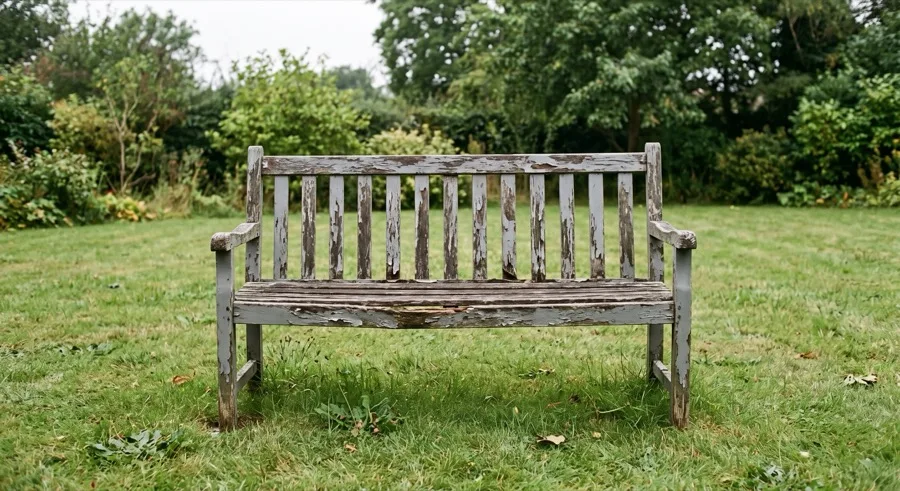
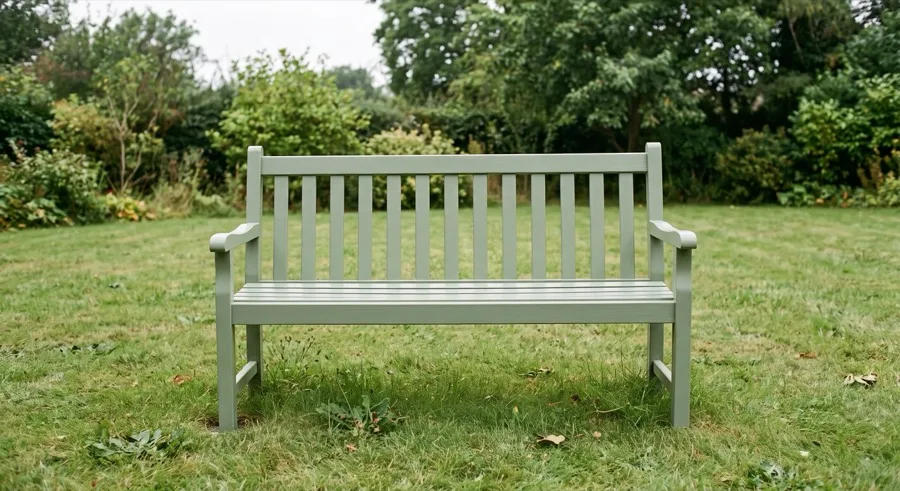
Same position, same distance, same overcast light — so every visible difference is the restoration itself. This is the output shape the page produces.
Two spacing controls, because they do different jobs
Most tools give you one spacing slider that moves everything at once. This page separates them, because the gap between the photos and the padding around the pair mean different things.
Image spacing is the divider. It tells the viewer these are two distinct photographs rather than one wide scene. A thin gap of 8 to 16 pixels is usually enough; too wide and the pair stops reading as a single comparison.
Outer border is the frame. It gives the finished card room to breathe against whatever it is placed on. Set it to zero when the destination already provides padding — a blog post or a slide usually does — and raise it when the image sits directly on a coloured background.
The middle gap and the outer border are independent here.
Labels
Labels default to Before and After and can be edited to anything — dates, version names, product names, or turned off entirely for an image-only comparison.
Keep them to one or two words. A label sits on top of the photograph, so a long caption covers exactly the detail the comparison is meant to show. Dates often work better than the generic pair: "March" and "September" carry more information than "Before" and "After" and let the viewer judge the interval.
Check contrast at the label's position specifically. Pale text over a bright sky disappears, and this only becomes obvious once the image is out of the editor.
Before you publish
Cover the labels and look again. If the comparison only works because the words tell you which is which, the images are not carrying it.
Check it at phone size. Two photos side by side means each gets half the width. Detail that is obvious in the editor can vanish in a message thread — and if it does, a vertical stack may serve the comparison better than a row.
Confirm nothing private crept in. Reflections in windows, documents on a desk, screens in the background, house numbers, number plates. Side-by-side images get shared more widely than most, and both frames get scrutinised.
Side-by-side comparison questions
How do I make a before-and-after image?
Add the earlier photo first and the later one second, keep or edit the default Before and After labels, set the middle gap, then export. Matching the camera position and lighting between the two shots matters more than any setting here.
Can I merge more than two photos on this page?
No — this page is limited to two so the comparison controls stay focused. For three or more, use Join Photos Together for a row or Combine Images Online for a grid.
Can the middle gap and the outer border be different?
Yes, that is the point of having both. Image spacing sets the gap between the two photos; Outer border sets the padding around the finished pair.
How do I swap left and right?
Use the arrow buttons on the thumbnails to move one image earlier or later. The left thumbnail is always the left photo.
Are the labels required?
No. Turn off "Show labels on photos" for a clean image-only comparison. You can also replace them with dates or version names.
Should the two photos be the same size?
They do not have to be — Equal height scales both proportionally to match. But a comparison is more convincing when the two frames were shot from the same position with similar framing, because then differences in the image reflect real differences in the subject.