Four ways to put images together. Start by deciding what the person looking at the result needs to do with it — the layout follows from that.
Local processing
JPG, PNG & WebP
Works on phone
Updated
Drop photos here
or paste Ctrl/⌘ V, choose files, or take a photo
Your photos are processed in your browser. Nothing is uploaded.
Presets
Photos
Preparing your image…
Layout
Adjust
50%
100%
50%
50%
0°
16px
16px
0
Labels
Export
92
Output: —
One payment for 30 days, no automatic renewal. Pro also removes ads and unlocks batch ZIP export.
Private export. No upload, no account, no watermark.
Combine images in three steps
Add your photos above, choose a row, column, grid or overlay, then drag the thumbnails to set their order. Adjust the gap and background while checking the live preview.
Download as JPG, PNG or WebP, or copy the image. For example, use a grid for a product collection, a column for screenshots, or a row for a before/after pair. All image processing stays in this browser.
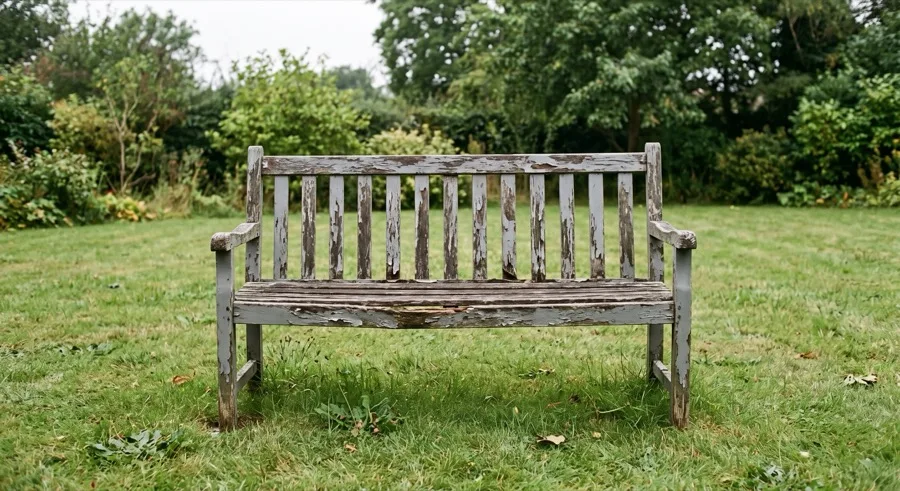
Before
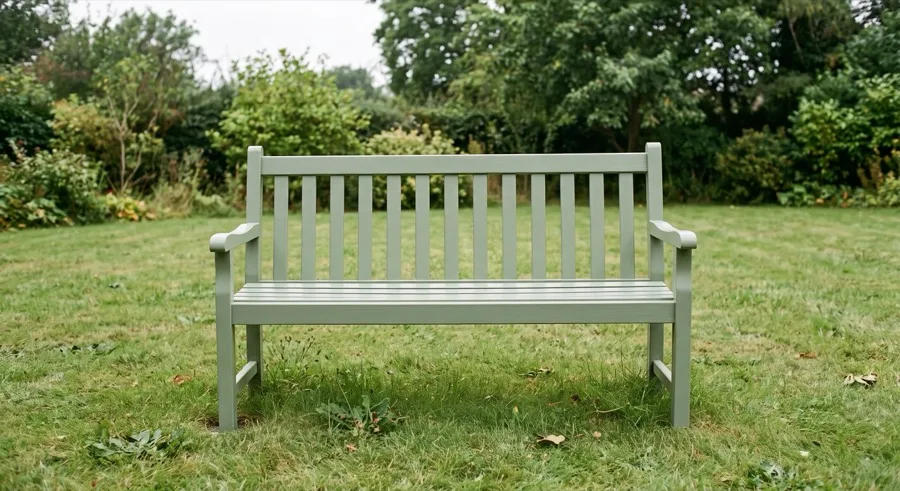
After
A real two-image comparison using the side-by-side layout and labels.
Choose the layout from the reader, not the images
The four layouts are not interchangeable styles — each answers a different question the viewer is about to ask. Work out which question applies and the choice makes itself.
Four layouts, four different jobs.
Horizontal — "how do these compare?" A row is read left to right and implies sequence or direct comparison. Best at two to four images; past that everything gets too narrow to read.
Vertical — "what happened, in order?" A column suits anything that is scrolled: screenshots, steps, conversations. It can be very long without becoming unreadable, because scrolling is how people consume tall images anyway.
Grid — "what is in this set?" A grid gives every image equal weight and supports scanning rather than reading. This is the right shape for five or more items with no inherent order.
Overlay — "how do these two relate?" Two images sharing one canvas, with opacity and blend modes. For layering and alignment rather than arrangement.
You can switch layouts at any point without re-adding anything, so if the choice is not obvious, try two and look at them.
Fit or fill, when the images are different shapes
Once a layout uses cells — grid especially — you have to decide what happens to images that do not match the cell's shape.
Fit puts the whole image inside the cell and pads the remainder with the background colour. Nothing is lost. Use it for documents, screenshots, product shots on plain backgrounds, and anything where a cropped edge would remove information.
Fill scales the image until it covers the cell and trims the overflow. It looks tidier, and it is the only option here that discards content. Fine for a decorative collage of holiday photos; not fine for receipts, IDs, or anything with text near an edge.
The honest summary: Fill looks better and Fit is safer. Check what Fill has cropped before you export it.
Output size
The maximum-width setting is the last decision and the one most worth getting right, because it determines both file size and whether the detail survives.
Pick the output width from where the image is going.
Reduce width before reducing JPG quality. Fewer pixels at high quality nearly always looks better than many pixels heavily compressed, and heavy compression is especially unkind to any text in the image.
Do not scale above the source resolution. Enlarging adds file size and no detail.
If you already know the shape you need
This page carries all four layouts, which makes it a good starting point and a mediocre finishing point. Each of these is set up for one job with defaults already correct and controls specific to it:
Image Merger — two or three images merged into one file, with the layout picked from their shapes.
Image Combiner — many images in one grid, kept whole, sized for the platform you are posting to.
Can I reuse one style across several before/after pairs?
Use the batch comparison tool for up to 20 pairs: set a canvas, labels and Logo once, inspect every pair and export one free sample. Full ZIP export is part of PhotoMerge Pro. The editor on this page stays free to use and download.
Which layout should I choose?
Horizontal for comparing two to four images, vertical for anything read in order or scrolled, grid for five or more items of equal weight, and overlay for two layers that share a canvas.
Can I change the layout after adding photos?
Yes. Switch between layouts at any time — your images and their order are kept and the preview updates immediately.
Can I combine images without cropping any of them?
Yes. Use Fit in grid layouts, Equal height in a row, or Equal width in a column. Only Fill crops.
How many images can I combine?
There is no fixed limit. The practical ceiling is your device's memory, and readability drops as the count rises — a grid handles large sets better than a row.
Is this the same as panorama stitching?
No. These layouts arrange complete images next to or on top of each other. Stitching detects overlapping content between two photos of the same scene and blends them into one continuous view.
Are my images uploaded to a server?
No. Decoding, composition and export all happen in your browser. Nothing is transmitted and nothing is stored.